BoxerBase
Event settings#
This page covers every tab under event settings: general details, location, contact, times and rings, classes, weigh-ins, and officials. Configure classes before you open registration, because boxers can only register into classes you have created.
General#
Set the event name and other basic details here. These appear on the event’s public page.
Location#
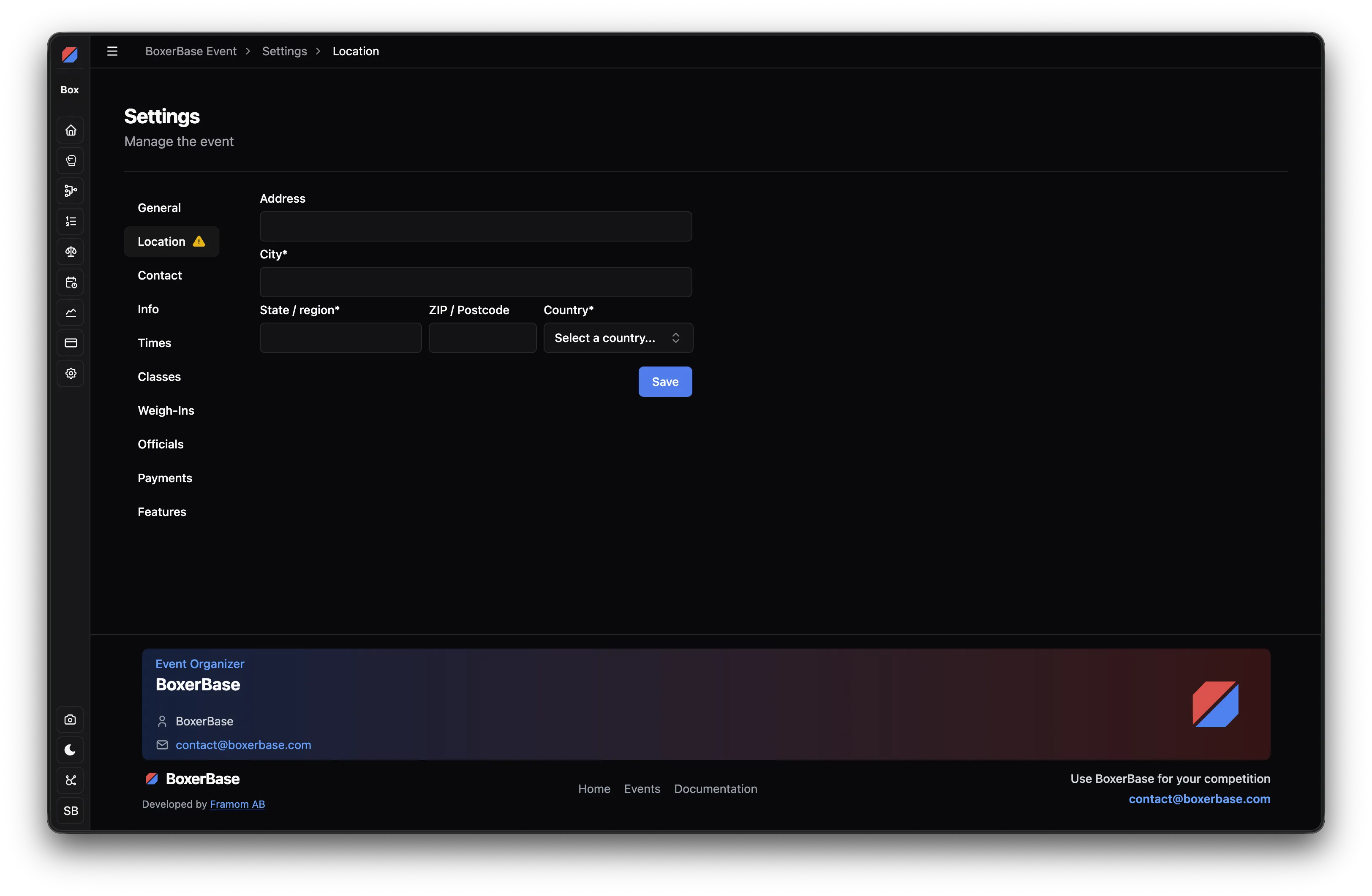
Set any main-location details you know: a venue name, address, city, region, postal code, or country. Each field is optional. Event cards, lists and the schedule show it short, as the city and country with a flag; hover it to see the full address.
If sessions or weigh-ins happen elsewhere, choose Add venue under Other venues. Give each venue a name; its address fields are optional. Then pick the venue for each timeslot on the Times page or each session on the Weigh-ins page, or leave Main event location selected. A selected venue uses only its own details, without borrowing missing fields from the main address. Venues appear on the public schedule, and their full address on session printouts.
Move any sessions and weigh-ins to another venue before deleting one. Events with a single location need no extra setup.
Contact#
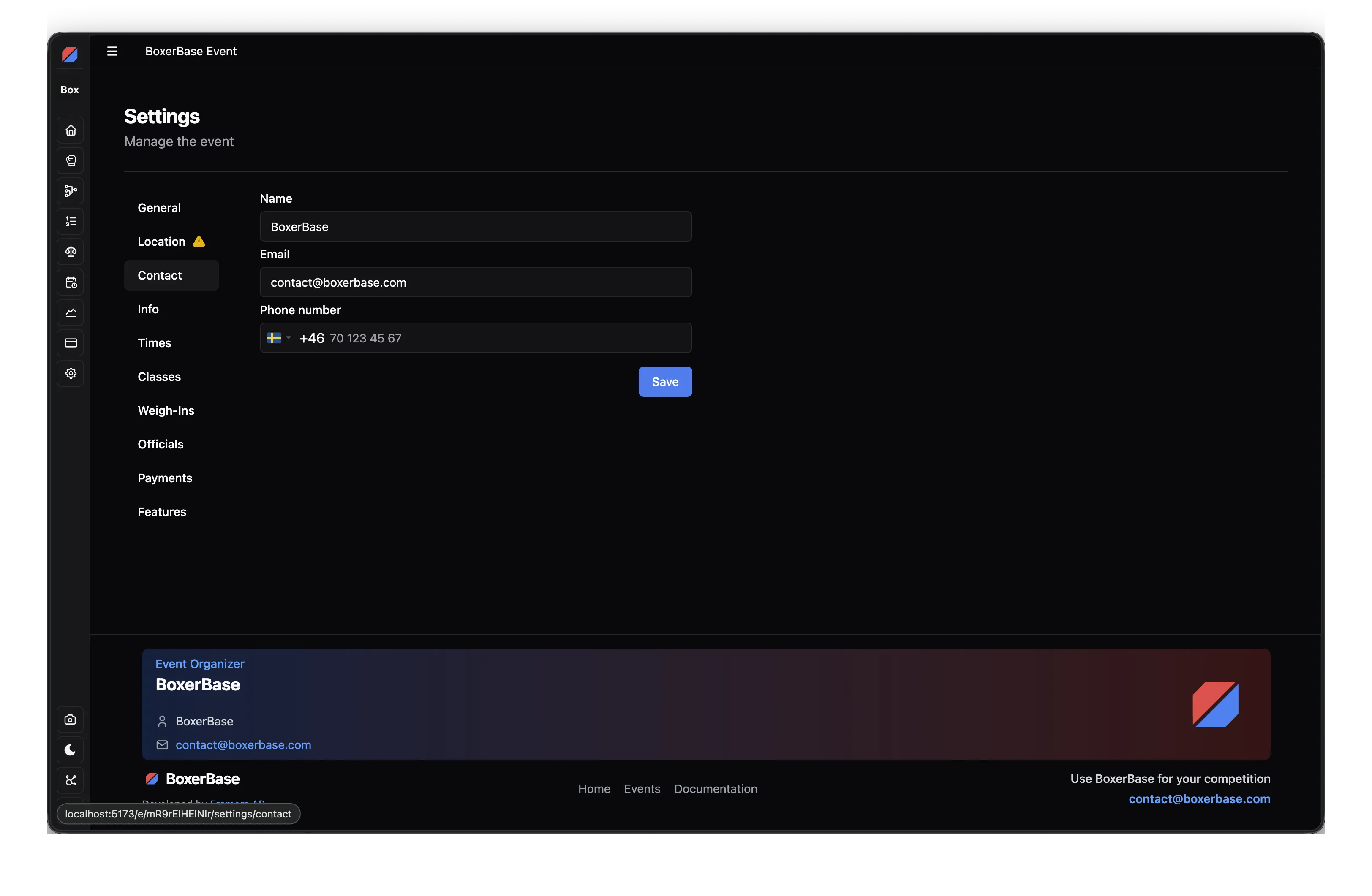
Optionally add contact information. It appears in the footer of the event page.
Times and rings#
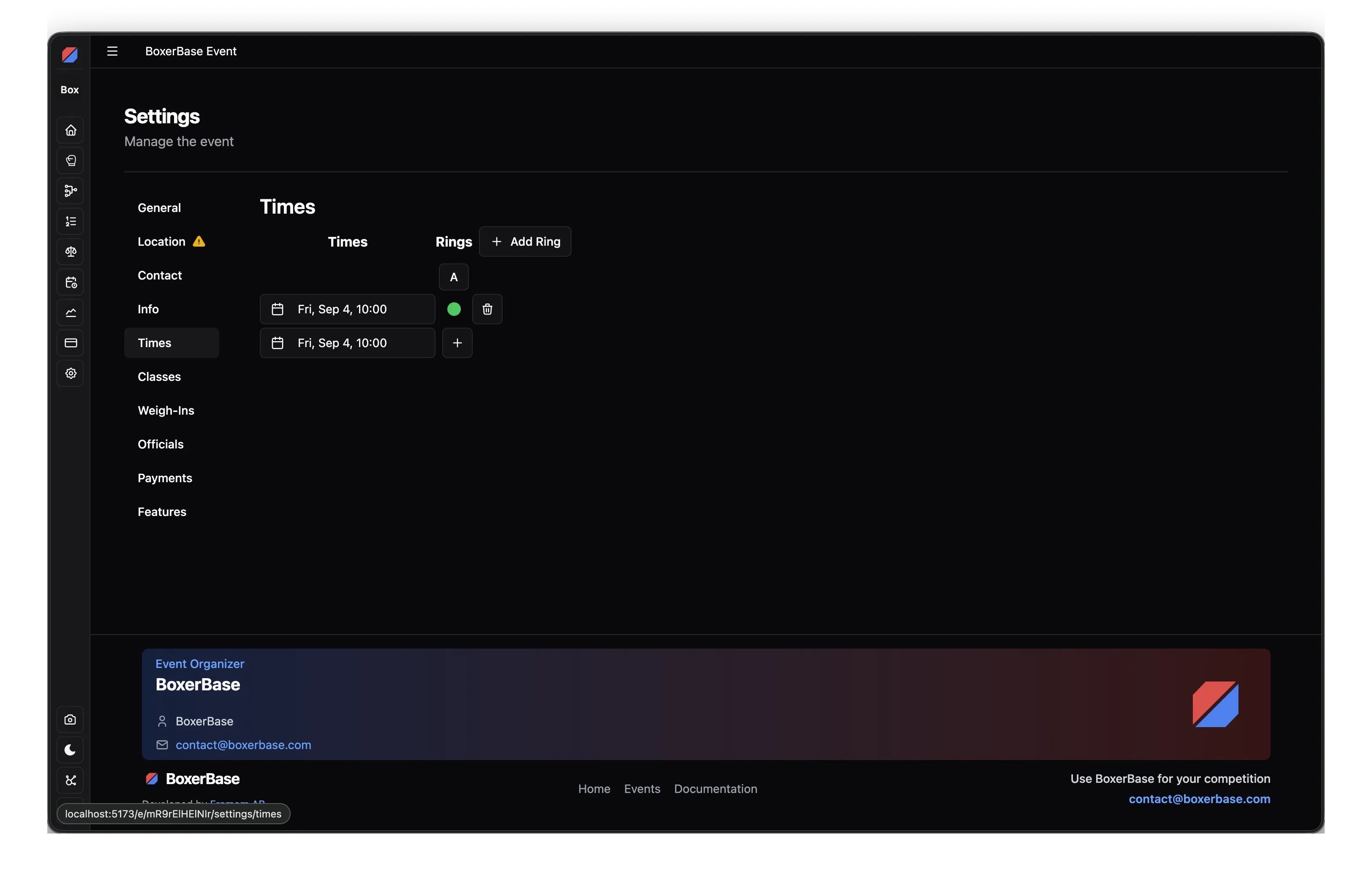
Create the timeslots for your event, then add rings to each timeslot. Each combination of timeslot and ring can hold matches in the schedule. The colored dot turns a ring on or off: an off (red) ring receives no matches, for example during a lunch break or an evening ceremony.
Tips:
- Add one timeslot per competition day and session. Two sessions on the same day means two timeslots with different start times.
- The event start and end dates must cover the days you add: you cannot add a session on a day outside the event dates. Fix the dates first if a day is missing.
- You can plan with a preliminary plan as soon as timeslots exist, before the draw.
Info#
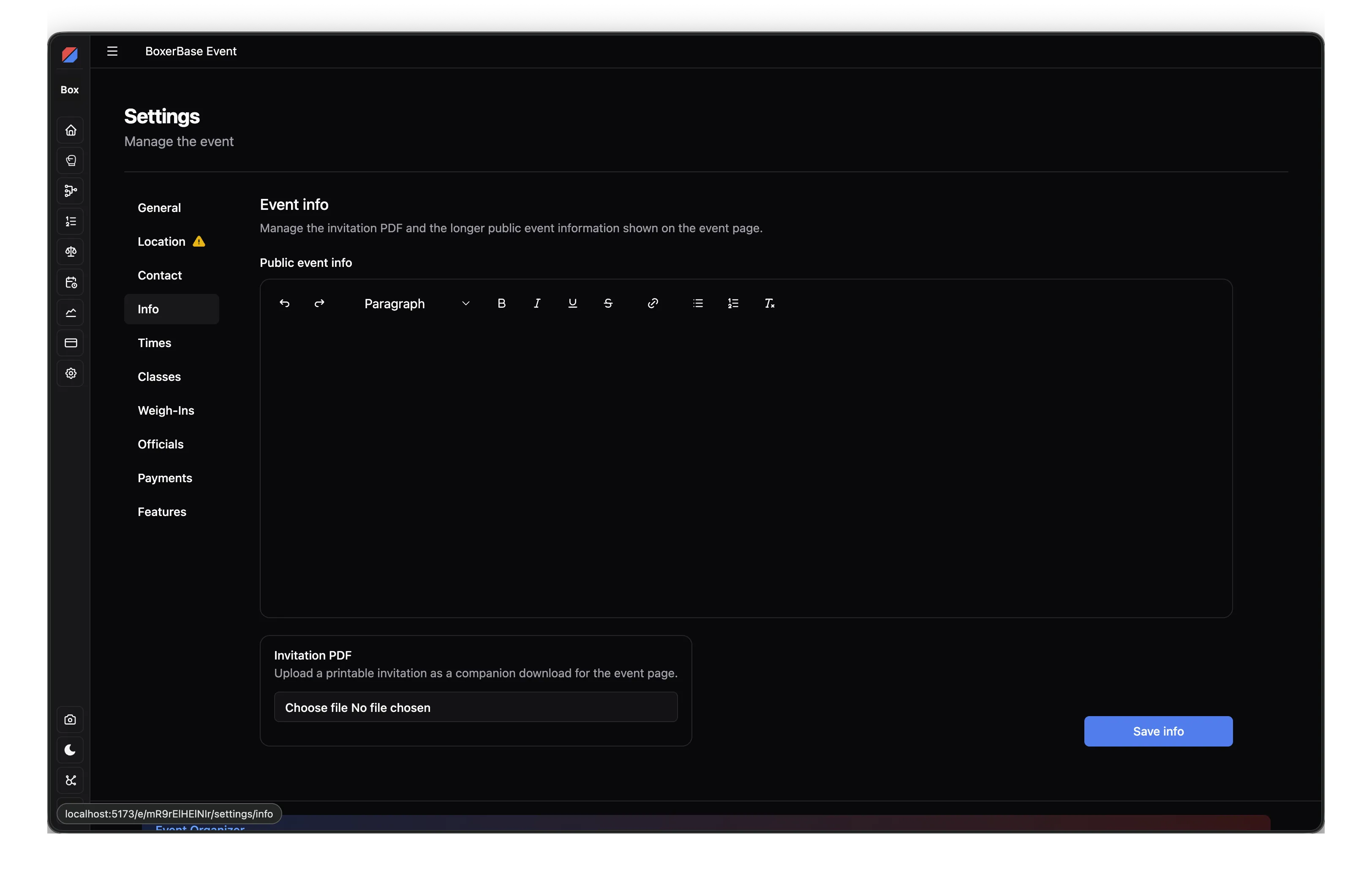
Write the longer public event information shown on the event page, and upload a printable invitation PDF as a companion download.
Classes#
See Event classes for the illustrated guide to creating classes, bulk edits, boxer moves, split/merge and pools.
Edits here affect only this event. Saving organization defaults is a separate action.
Create the event classes. Until you do, no boxers can register, and registration is limited to the classes you create here. A new event starts with your federation’s classes: tick the ones the event has and choose Add to event.
The age shows how it is counted and the birth years it allows for the event’s year, for example 19–40 · by year of birth · born 1986–2007. Counted by date of birth, it shows exact dates instead.
Create several classes at once. Choose New classes, pick the age group and the genders, and enter the weights for each gender (type or paste them separated by commas, spaces, semicolons or slashes, for example 48, 51, 54, 57, 60, 92+ or -48kg -51kg +54kg, or start from a preset or another class). Turn on Split by experience to create variants limited by number of bouts, starting from A, B and C or dev and open. A warning shows when a number of bouts fits two variants or none. One form creates every combination, for example men’s and women’s Junior A, B and C. Add classes adds your federation’s classes instead.
Edit many classes together. Tick classes in the list to select them: tick an age group to select all of it, shift-click for a range, or open one class and choose Also select to pick up its A/B/C variants. The table shows the boxers in every weight of every selected class. From there:
- Edit next to Weights gives all selected classes one weight list. Weights that stay keep their groups, boxers and draws. Boxers in a removed weight move to the nearest heavier weight unless you choose another.
- Edit next to Settings changes rounds, round and rest length, age limits, bout limits or rules. Fields that differ between the selected classes show Mixed and stay as they are unless you change them.
- Split, in the ⋯ menu next to the selection’s name, turns a class into experience variants. Its current groups, boxers and draws stay in the variant you choose; the other variants are created empty with the same weights. Bout limits include both ends, so 0–5 and 6–14 don’t overlap, while 0–5 and 5–10 both take a boxer with 5 bouts.
- Merge, in the same menu, does the opposite for two or more classes: the class you keep takes every weight of the others and the boxers in them, its bout limits widen to cover all of them, and the others are removed. Classes whose groups have bouts or planning entries can only be the one you keep.
- That ⋯ menu also has Limit boxers, Competition format and Delete, which apply to every group of the selection. The ⋯ menu at the top holds score visibility, setting the classes as defaults and the format for all groups.
Creating classes, editing weights or settings, splitting, merging and deleting classes open a review first that lists what changes in each class and which boxers move. Nothing is saved until you confirm it, and if someone else changed the classes in the meantime you are asked to review again. Weights with bouts or planning entries can’t lose, gain or remove boxers.
Click a number in the table to open that weight’s groups. There you can add a pool to split the weight into separate brackets, shown with its number in brackets such as 57 (2), set a limit, change the format, disable or delete a group.
Group limits, format, enable/disable and adding a pool save separately, without the class-change review. Group deletion asks for confirmation.
Good to know:
- Don’t select both your own federation’s defaults and the BoxerBase defaults for the same event, or you will get double weight classes.
- Round changes apply to newly created matches by default. You can also apply the changed round fields to existing unstarted matches; the review shows the affected counts. Started and completed matches stay unchanged.
- You can save the classes you set up as defaults for your club or federation, so enabling them for future events is one switch.
- The boxer’s registered weight controls which classes are offered when moving them; toggle show all to see lower weight classes.
Weigh-ins#
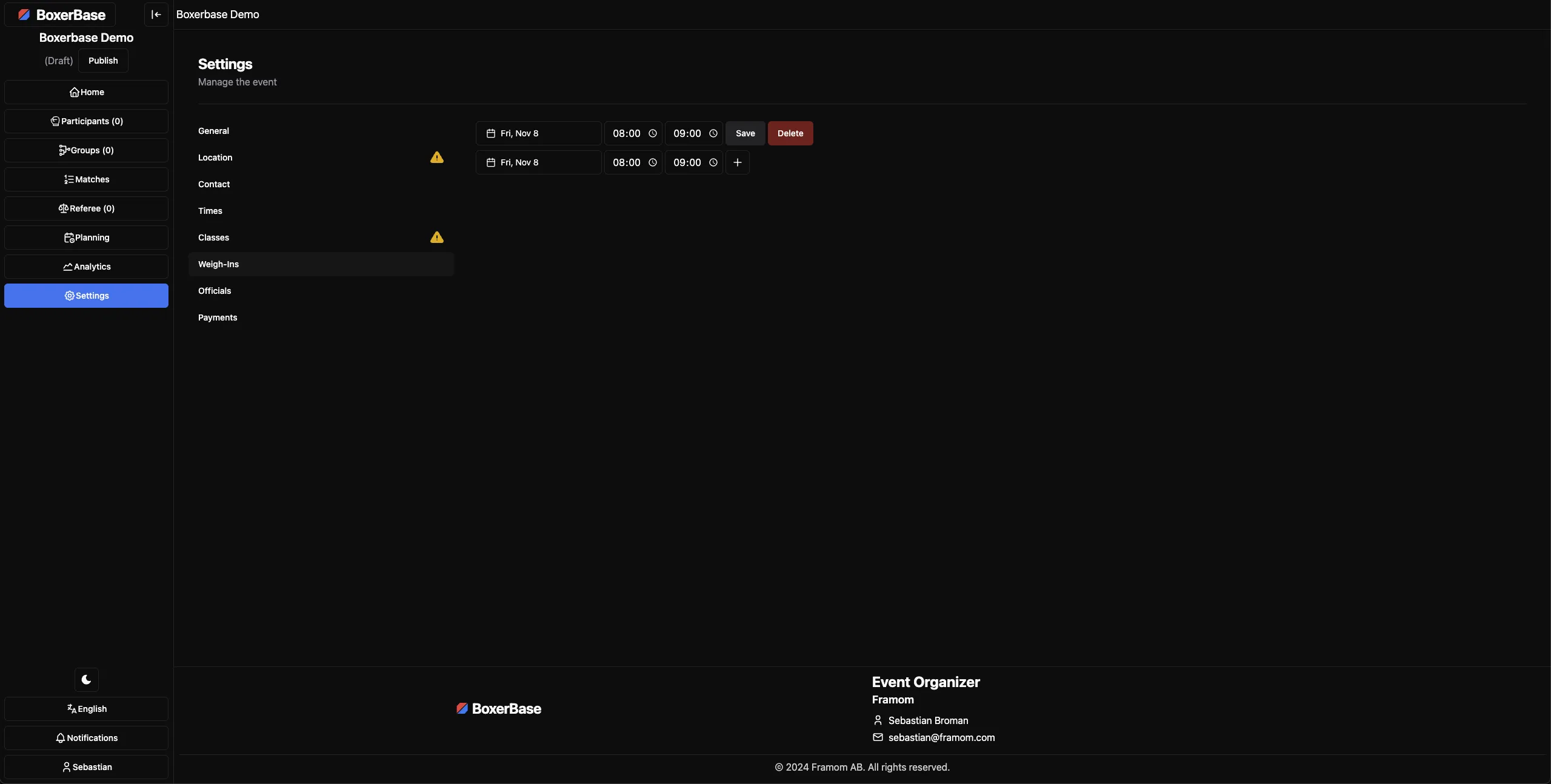
Create weigh-in sessions with a date and time each. After you add them, you can mark each boxer off from the weigh-in list. See Weigh-in session types on the participants page for the difference between weigh-ins and check-ins.
Officials#
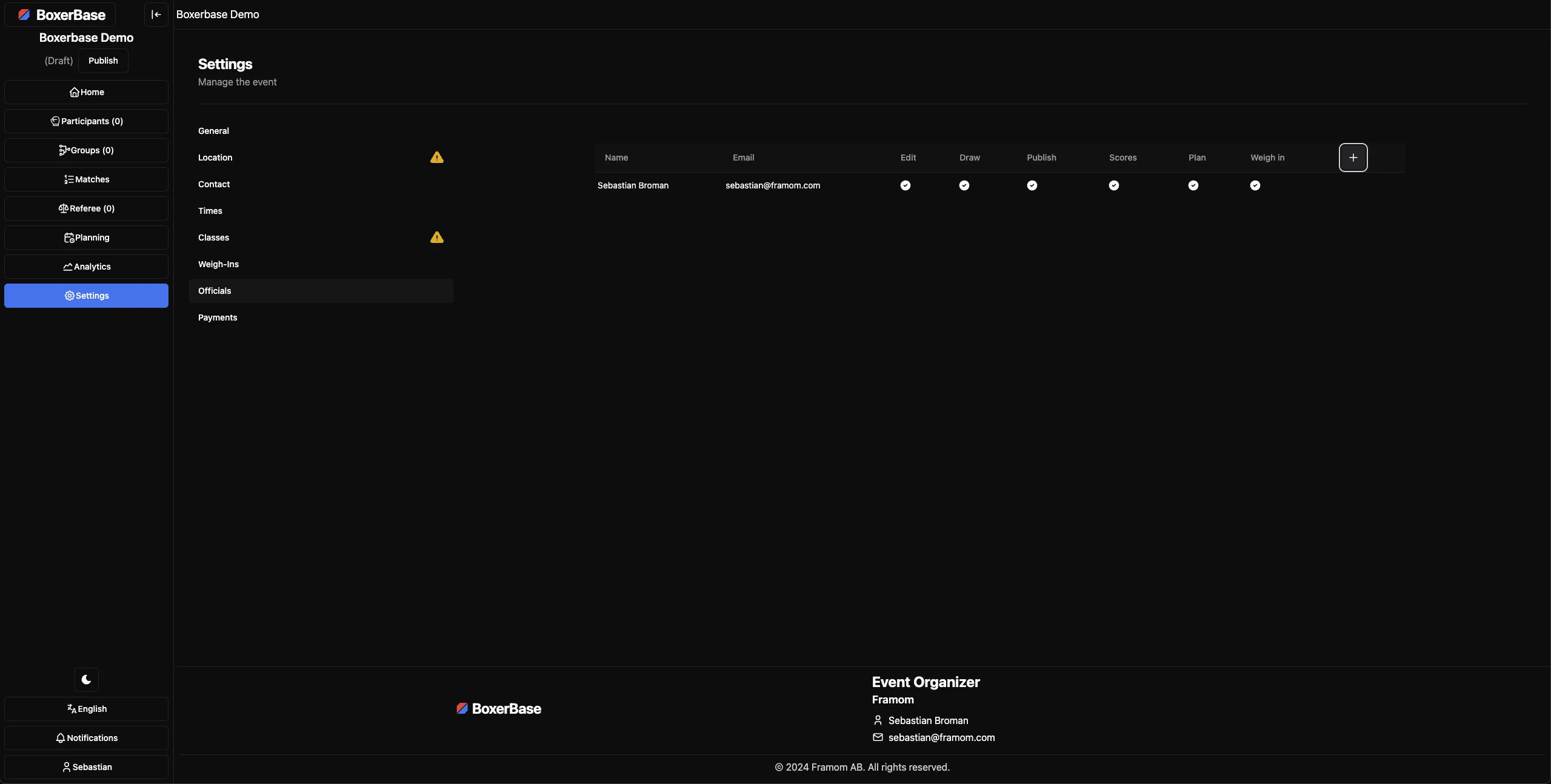
Invite other users to help manage the event. Enter their email address and select a role. The invitee must already have a BoxerBase account with that email before they can accept.
Full access gives every permission, including settings and managing officials. Turn it off to pick permissions one by one: boxer draw, publishing, setting scores, planning matches, weigh-in, and Draw Commissioner for referees, judges and their draw. See Draw Commissioner role.