BoxerBase
Event classes#
Open Settings → Classes to choose which classes boxers can register in. Set them up before opening registration. You can add your federation’s classes, create your own, or edit several classes together.
Edits here affect this event only. Changing a class’s rules, weights, ages or rounds does not change your federation’s defaults or another event. Set as organization defaults is a separate, explicit action for reusing the setup.
The screenshots use dark mode and a fictional event. Every participant and club shown is an example.
Classes, weights and pools#
A class combines an age group, gender, rules and any experience limits, for example Men’s Elite B. Each class has a list of weights, such as 54, 57 and 60 kg. Each weight normally has one group, which holds its boxers and bracket. Extra pools create separate groups at the same weight.
A/B/C or Dev/Open are separate classes with different bout limits. A pool such as 60 (1) is a separate bracket within the same class and weight. Use Split for experience classes; use Add pool for another bracket.
Select and compare classes#
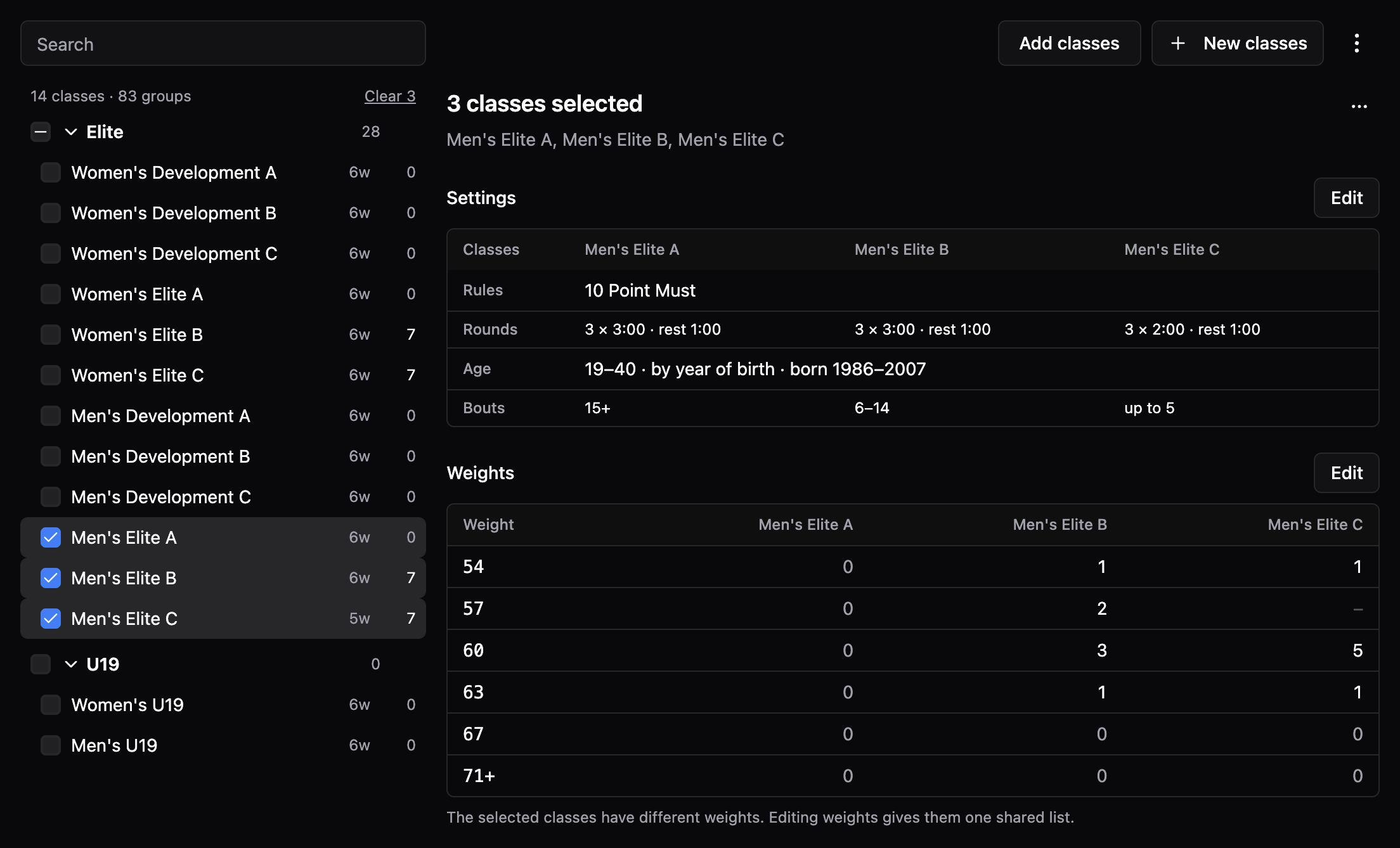
Click a class to open it, or tick several checkboxes to work on them together. You can also:
- Tick an age group to select all its classes.
- Shift-click to extend the selection across a range, or Ctrl/Cmd-click to add a class.
- Choose Also select to include a class’s A/B/C siblings.
- Search by class name or age group.
- Choose Clear to clear the selection.
The table compares the selected classes. Each weight cell shows its registered boxer count; a dash means the class does not have that weight. Above the weights, compare rules, round lengths, age limits and bout limits. Clicking a count, including zero, opens that weight’s groups.
Start from federation classes#
Choose Add classes, tick the classes your event needs, then choose Add to event. An empty event may show this choice directly. If you prefer your own classes, choose New classes.
Avoid adding both your federation’s defaults and BoxerBase defaults for the same classes: they would be separate entries in the event.
Create several classes at once#
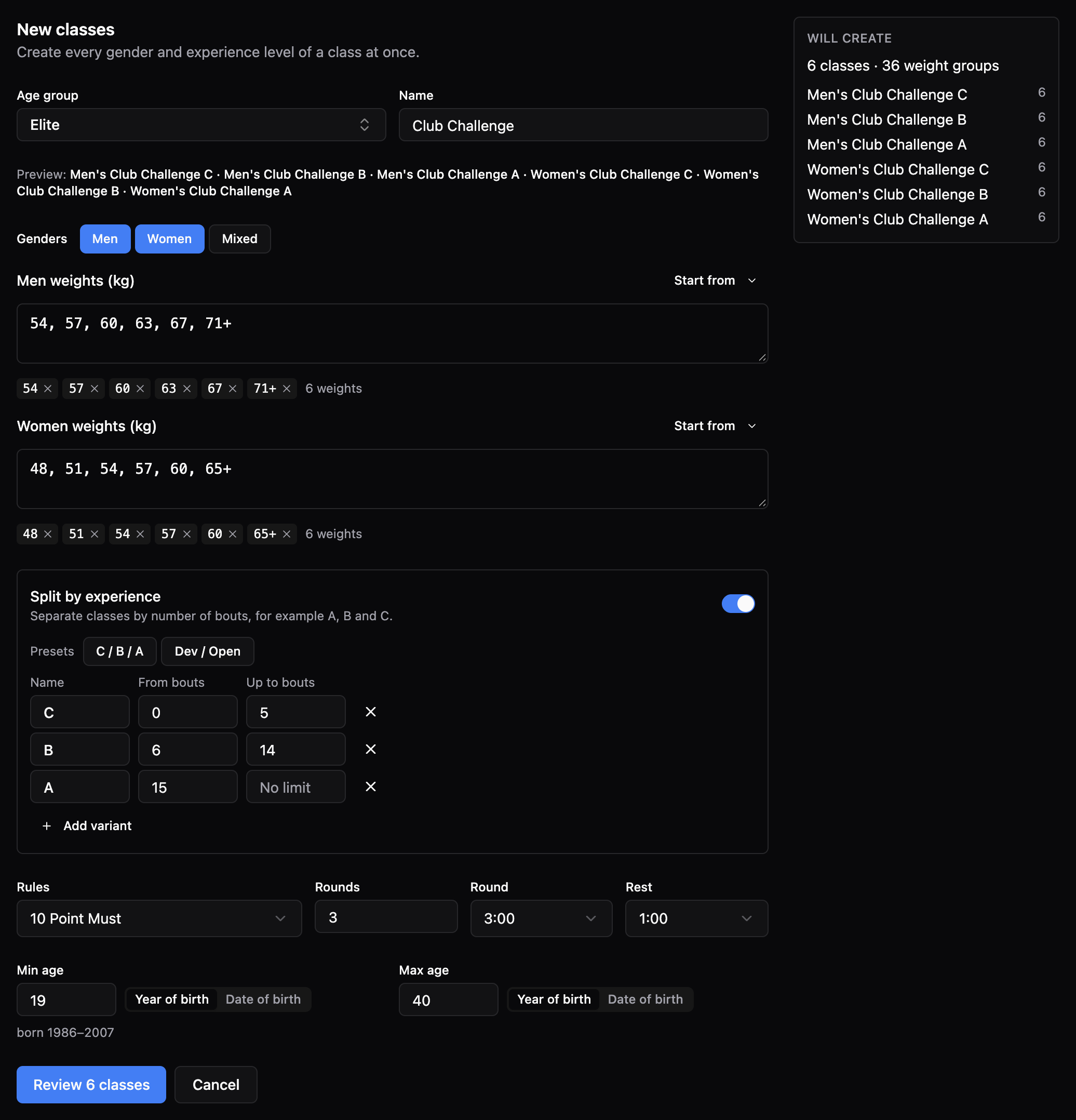
- Choose New classes and an age group. You can type an age group that is not in the suggestions.
- Optionally type a name. Under Shown as, keep This name to show it exactly as typed, or choose Gender + age group to place it after the gender and age group. The preview under the name shows the resulting class names.
- Select Men, Women or Mixed, and enter weights for each selected gender. Start from offers presets and existing classes’ weight lists.
- Optionally turn on Split by experience. Start from C / B / A or Dev / Open, then adjust the variant names and bout limits. Split classes are always named gender + age group + variant, for example Men’s Elite A.
- Choose the rules, number of rounds, round length, rest and age limits.
- Check Will create, choose Review, and confirm the classes in the review.
The example creates six classes: two genders × three experience levels. Each gets its own weights and empty groups. Creating classes does not register any boxers.
Weight input accepts commas, spaces, new lines, semicolons and slashes. For example:
54, 57, 60, 63, 67, 71+creates five upper-limit weights and an open class above 71 kg.45-48gives both a lower and an upper limit.-48kg -51kg +54kgis also accepted; a leading minus means an upper limit, not a negative weight.
Edit weights and choose where boxers move#
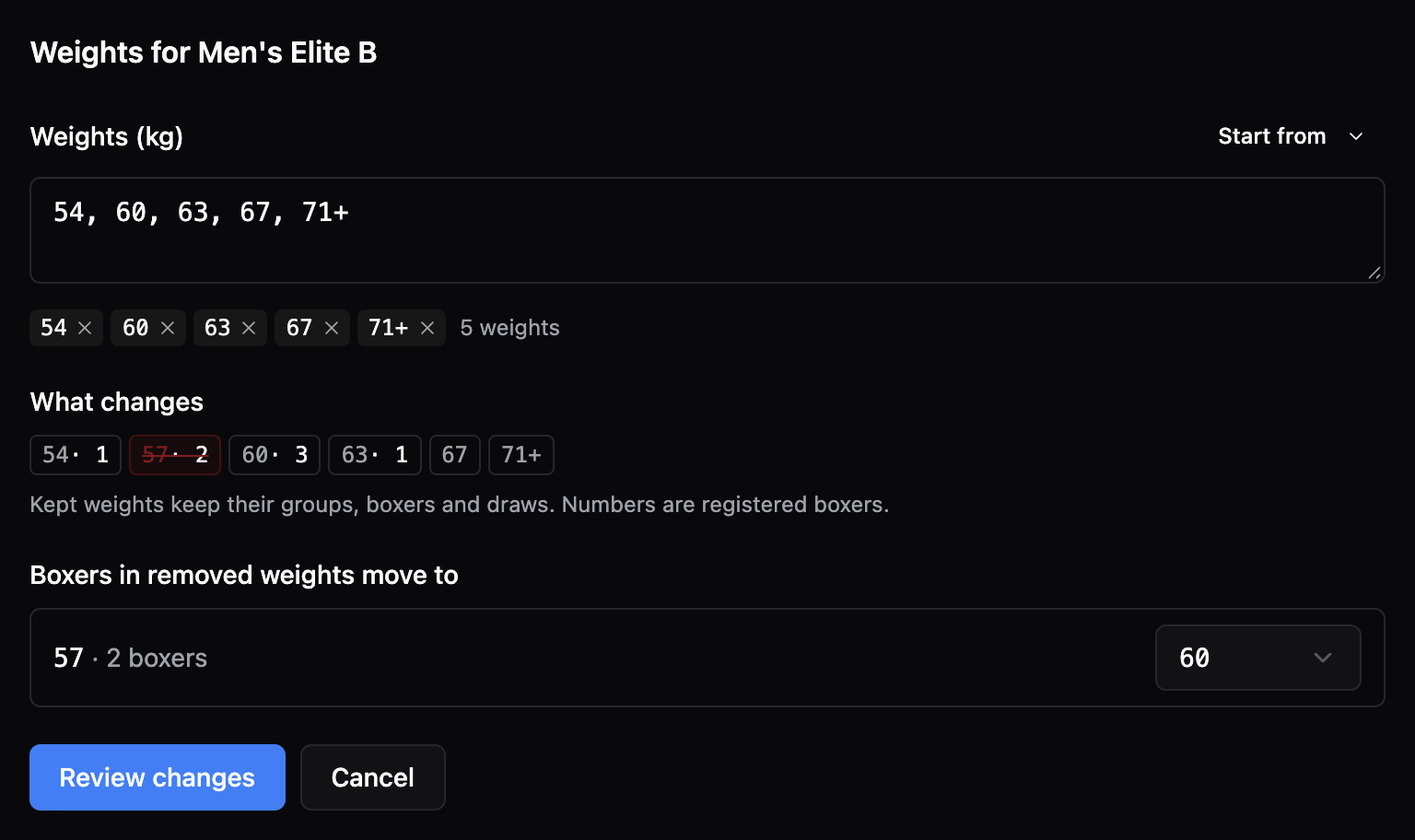
Select one or more classes and choose Edit next to Weights. The new list applies to every selected class, even if their old lists differ. Start from one of the existing lists or paste a new one.
Weights that remain keep their groups and boxers. Removing a weight moves its boxers to a remaining weight. The editor proposes the lightest new weight whose upper limit is at least the old upper limit; if none fits, it uses the heaviest weight. An open class moves to the heaviest weight. Use the destination selector to choose another weight before reviewing.
For example, replacing 54, 57, 60, 63, 67, 71+ with 54, 60, 63, 67, 71+ moves the boxers from 57 to 60 kg. Other weights stay in place. Review the destinations carefully, especially when removing the highest weight.
For an existing bounded weight, entering only its upper limit preserves its current lower limit. Enter an explicit range to change that lower limit.
Review before saving#
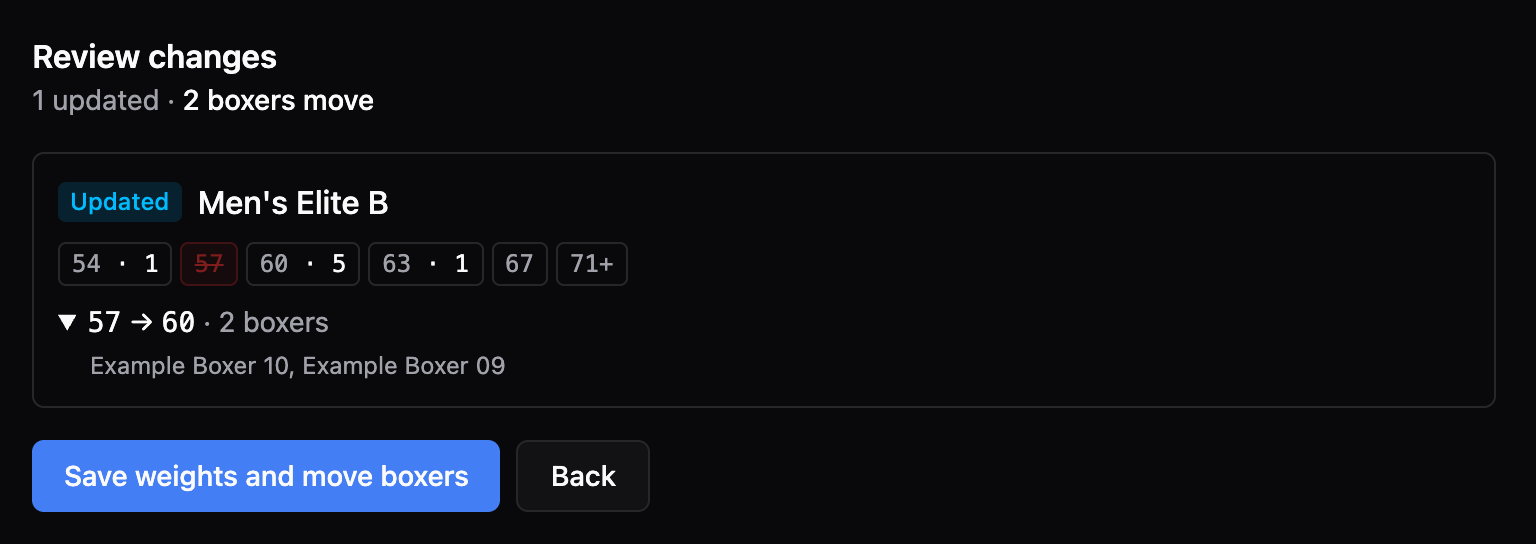
Creating classes, editing settings or weights, splitting, merging, and deleting classes use a review step. It shows new, updated, removed and unchanged classes, changed settings and boxer moves. Expand a move to see the affected boxers.
Choose Back to adjust the proposal. Nothing in that proposal is saved until you confirm it. If the classes change before you confirm, refresh and review again; the old preview cannot be applied. A failed batch does not partially save its class changes.
Groups with bouts or planning entries cannot be removed or gain or lose boxers through these edits. Moves must also respect the group’s boxer limit and the event’s limit per club. A newly created destination group inherits the class’s shared group limit, when there is one.
Group controls described below save separately; they do not all use this review screen.
Edit settings together#
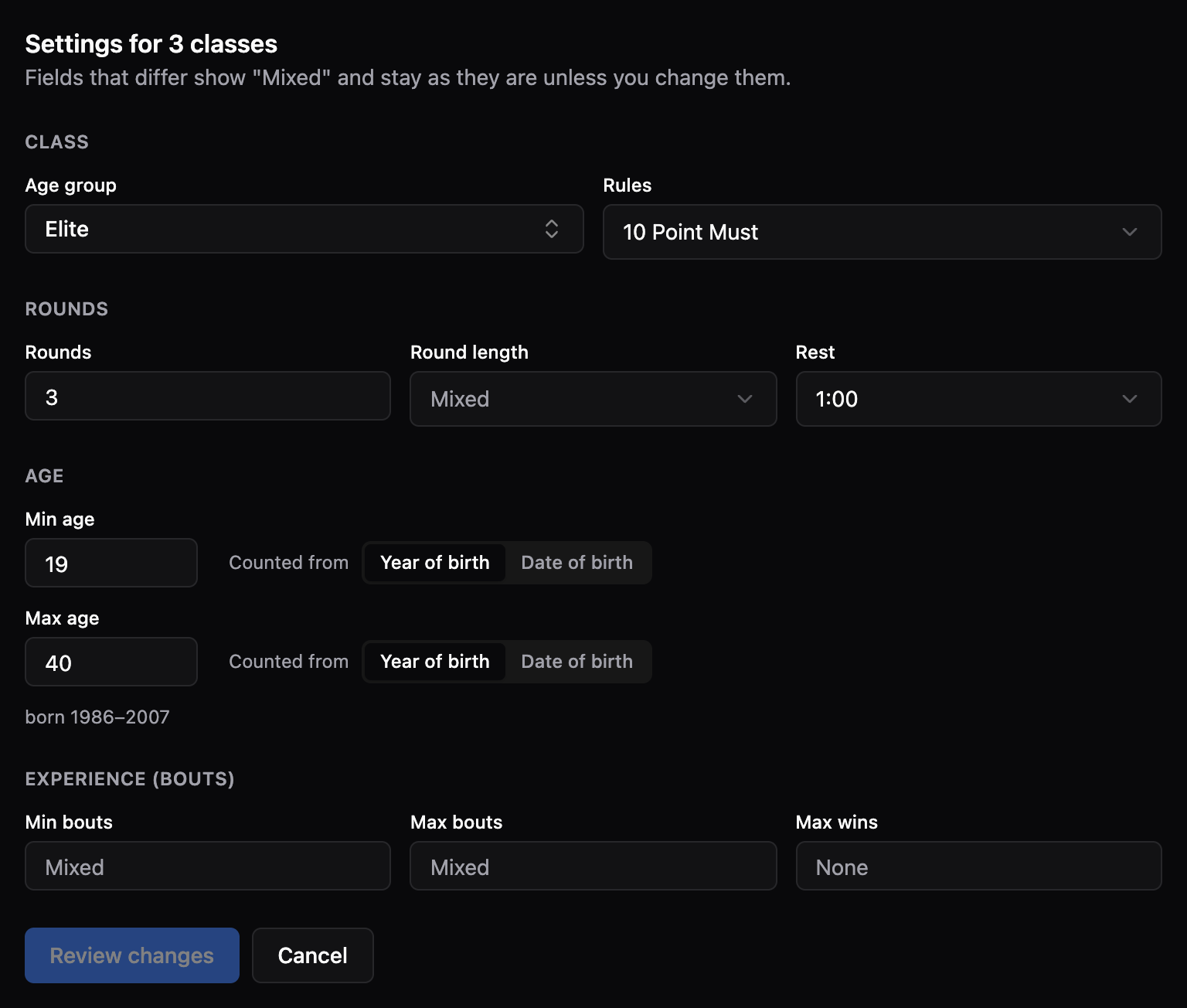
Choose Edit next to Settings to change rules, rounds, round and rest length, age limits and experience limits for the selection. A single class also offers its name, display-name mode and gender. The live preview shows the resulting class name as you edit.
Mixed means the selected classes disagree. Leave that field alone to preserve each class’s value. Changing it applies your new value to every selected class. For example, selecting 3:00 for a mixed round-length field gives every selected class three-minute rounds without changing their bout limits.
Age limits can count by Year of birth or Date of birth, independently for the minimum and maximum. The birth years or dates shown are calculated for this event’s start date.
When you change the number of rounds, round length or rest, choose Apply round changes to:
- Newly created matches only is the default. Existing matches keep their current round settings.
- New and existing unstarted matches also updates the changed round fields on matches that have not started. Other per-match round settings stay as they are.
The review lists how many existing matches will be updated and how many remain unchanged. Matches that have started or already have a result are always left alone. If a match starts after the review, saving stops and you must review again. This choice affects only this event.
Split a class into experience levels#
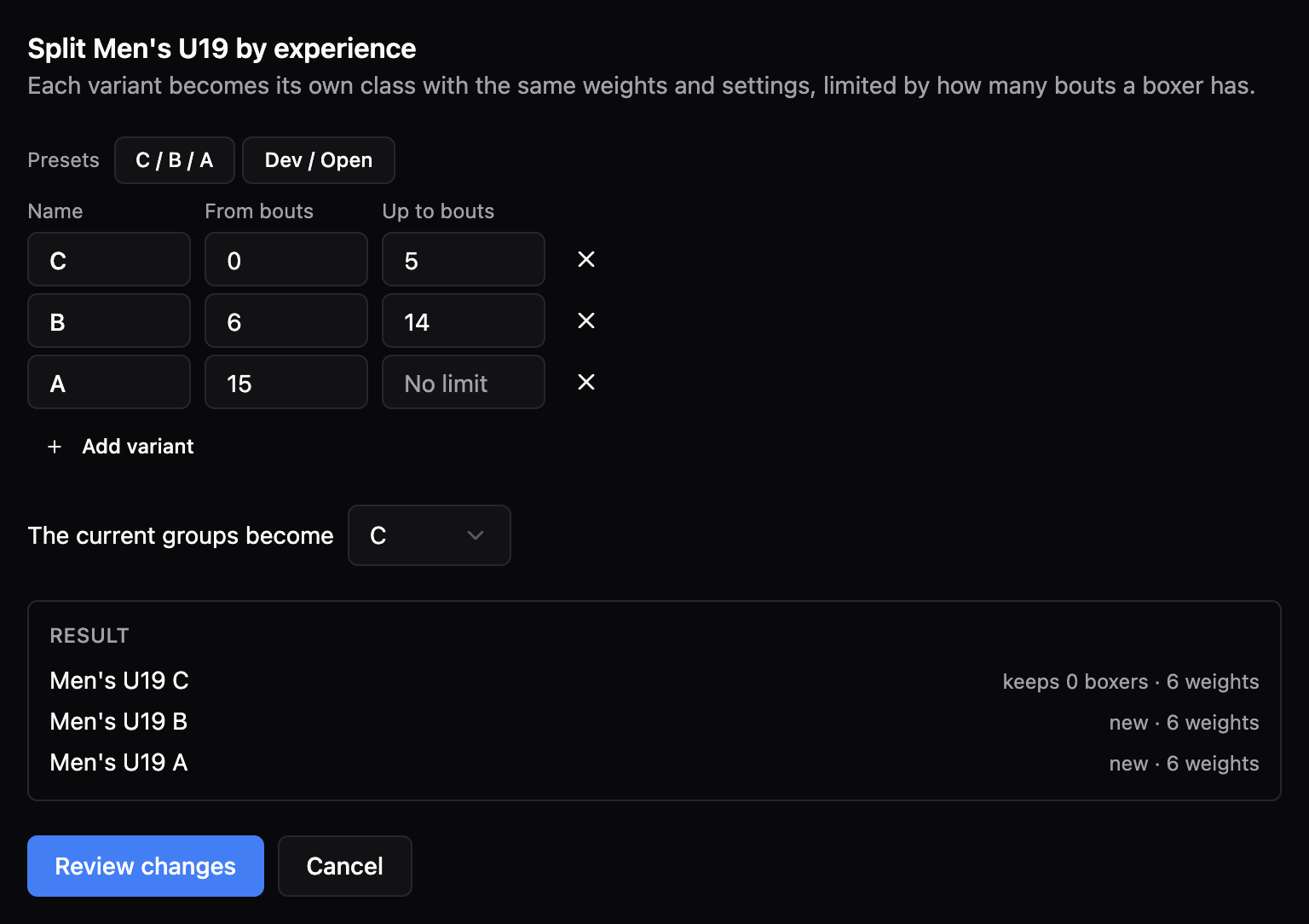
Select a class, open the ⋯ menu next to its name and choose Split. Set the variant names and bout limits, then choose which variant keeps the current groups and boxers. The other variants start empty with the same weights. Splitting does not distribute existing boxers by their bout counts; move them separately if needed.
You can split several selected classes using the same variants. New event groups copy the original class’s shared competition format and boxer limit, when those settings agree across its groups.
Both ends of a bout range are inclusive. C: 0–5, B: 6–14, A: 15+ has no overlap. 0–5 and 5–10 overlap at five bouts. The editor warns about overlaps and gaps; an unrestricted Open class may intentionally overlap a development class.
Merge classes again#
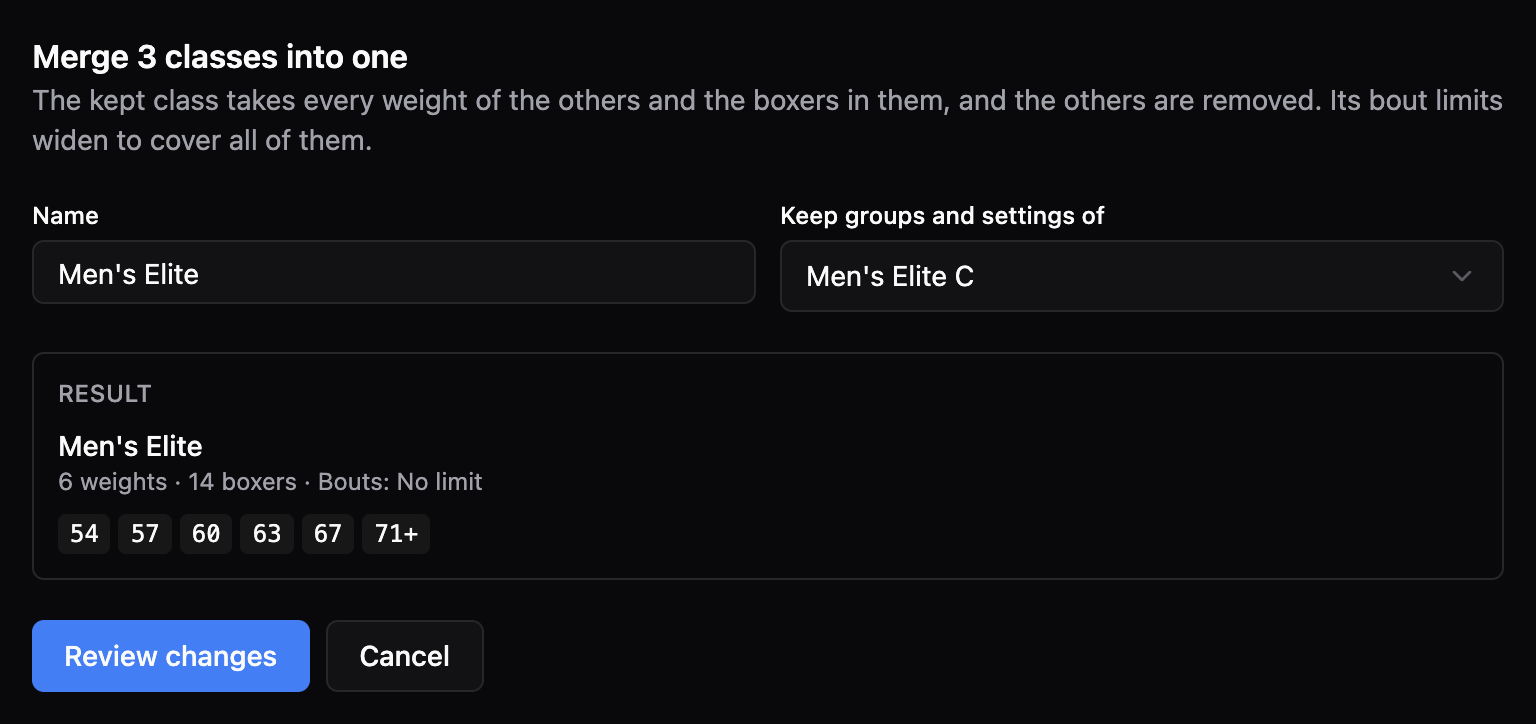
Select at least two classes, open the ⋯ menu and choose Merge. Choose the class to keep and the resulting name. It receives the other classes’ weights and boxers, and its bout limits widen to cover the merged classes. The other classes are removed from the event. Review the moves before confirming.
If a class has bouts or planning entries, it must be the class you keep. If multiple selected classes have them, you cannot merge them this way. When age groups or genders differ, the editor warns that the result keeps those of the class you chose to keep.
Pools and group controls#
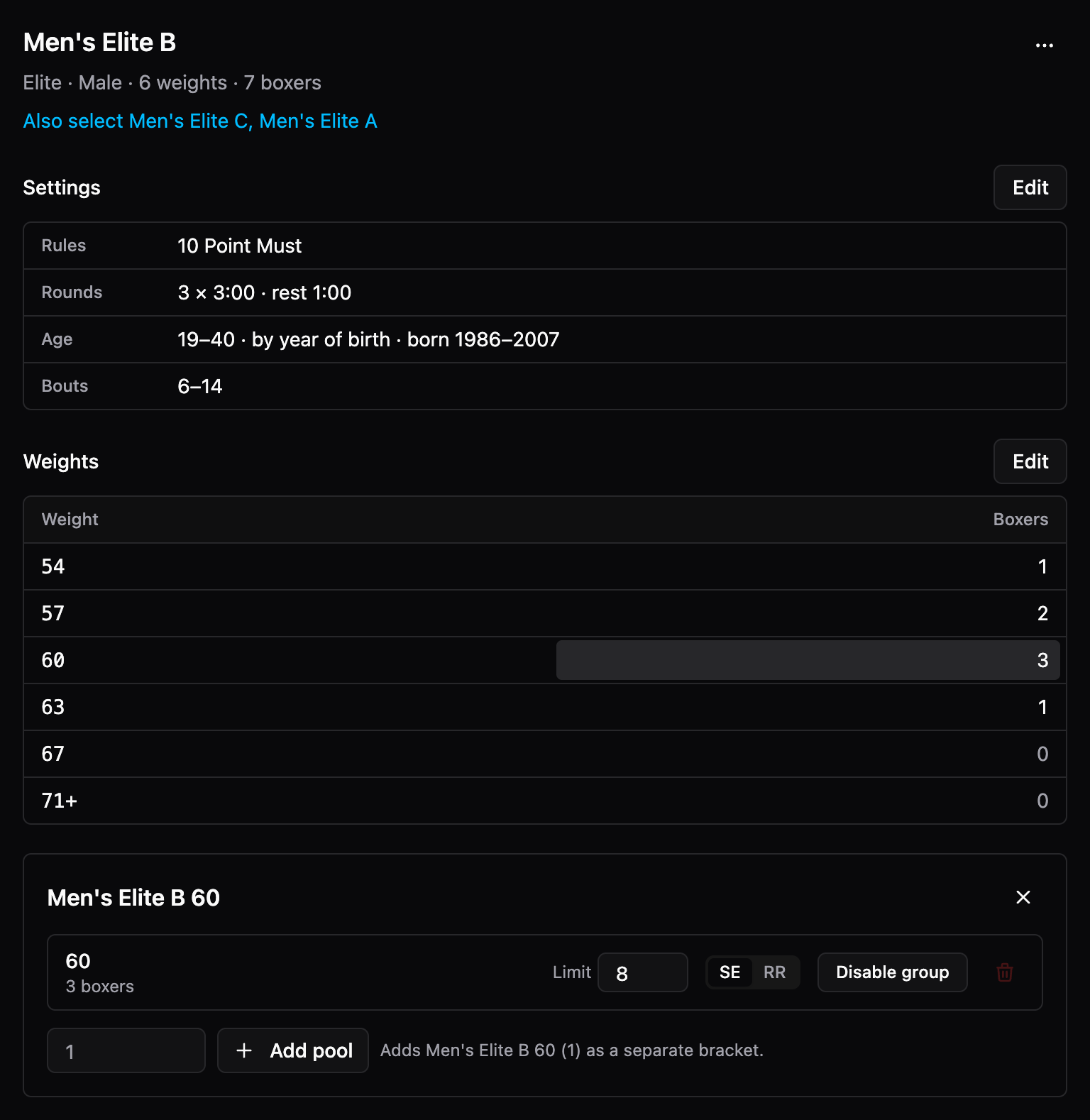
Click a boxer count in the weights table to open its groups. Here you can:
- Set or clear a group’s Limit.
- Choose SE (single elimination) or RR (round robin), where formats are available. The per-group control is disabled when it has bouts.
- Disable group to make it unavailable, or enable it again.
- Add pool with a suffix, such as
1, to create another empty bracket at that weight. It does not automatically divide the existing boxers. - Delete a group without boxers or bouts. Move its boxers first. Deleting a group also removes it from the planning.
Limits, enable/disable, format and adding a pool save directly. Group deletion asks for confirmation. The selection’s ⋯ menu, next to its name, also offers boxer limits, competition format and class deletion; bulk format changes ask for confirmation. Class deletion uses the review screen and requires empty, unlocked classes.
Reuse the setup and advanced tools#
The top ⋯ menu contains additional tools when available:
- Competition format can apply a format to all event groups.
- Score visibility configures the event’s rule-specific score and judge visibility. Some settings require additional organization permission.
- Set as organization defaults saves the event’s class setup as the selected club or federation’s recommended classes. This explicitly changes that organization’s defaults for future use.
Organization administrators with permission to create classes use the same editor under their organization’s Settings → Classes. Changes there manage recommended classes; classes already used by events are saved as new versions so those events keep their existing settings.